IonOS Logs
Overview
IonOS records information to several different logs. The size of these logs is automatically capped so that they do not grow continuously. It is therefore important to export the logs as quickly as possible after a possible error has been detected. The logs are not used as a data storage mechanism as they may be overwritten at any moment.
Contains a record of all the log messages that are available to be displayed to the user in the “Log Messages” panel. These log files are easily opened with a text editor (e.g. notepad). These can be analyzed by engineers and Elementar to find fault conditions and show user actions at any moment within the time-frame of the logs.
- Client Log
Contains more in depth and advanced information about how IonOS has been run. Typically, not all of the messages within this log are displayed to the user. These log files are easily opened with a text editor (e.g. notepad). These can be analyzed by engineers and Elementar to find fault conditions and show user actions at any moment within the time-frame of the logs.
- Readbacks
Contains the raw readbacks that are automatically recorded once per second for all the devices that any IonOS System is connected to. These log files are not designed to be opened by anyone other than Elementar.
- Communications
Contains a brief record of all the raw commands that have been sent and received over any serial port or TCP/IP port that IonOS is communicating with. These log files are not designed to be opened by anyone other than Elementar.
Exporting Logs
Logs can be exported to assist Elementar in fault finding the root cause of many system errors.
The logs can be exported by running the appropriate utility within IonOS.
The following procedure will create a zipped file which can then be emailed to Elementar.
-
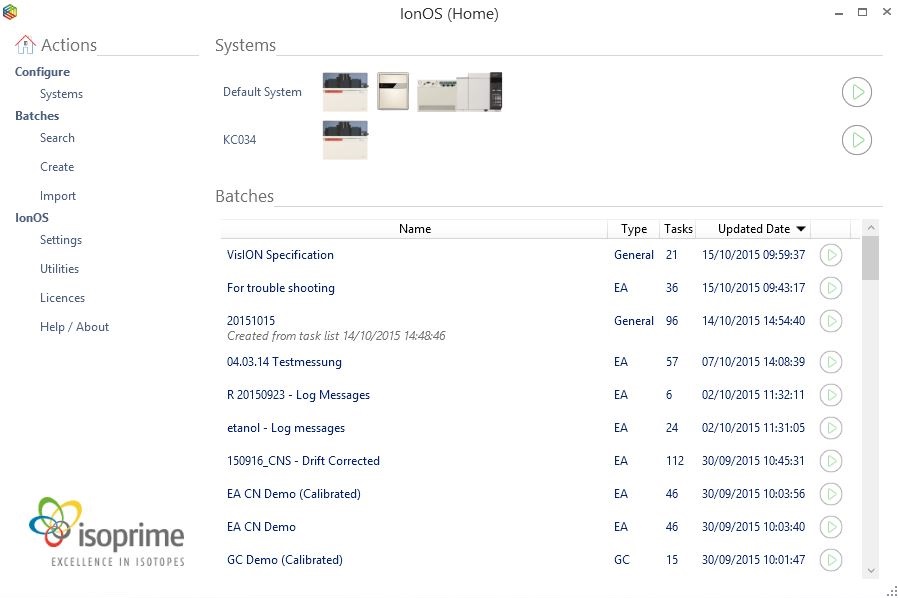
Open the Home page within IonOS.
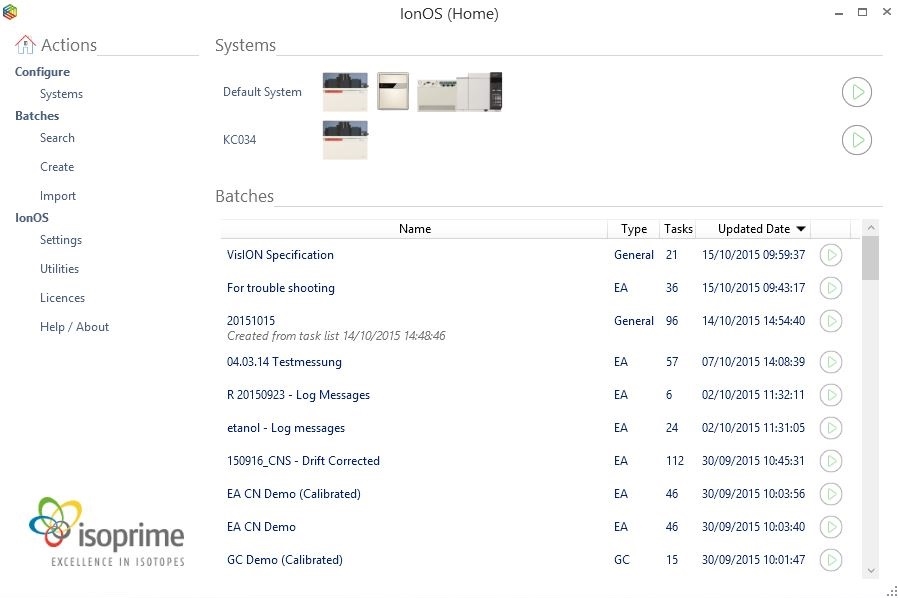
Figure 9-25: IonOS Home Screen
-
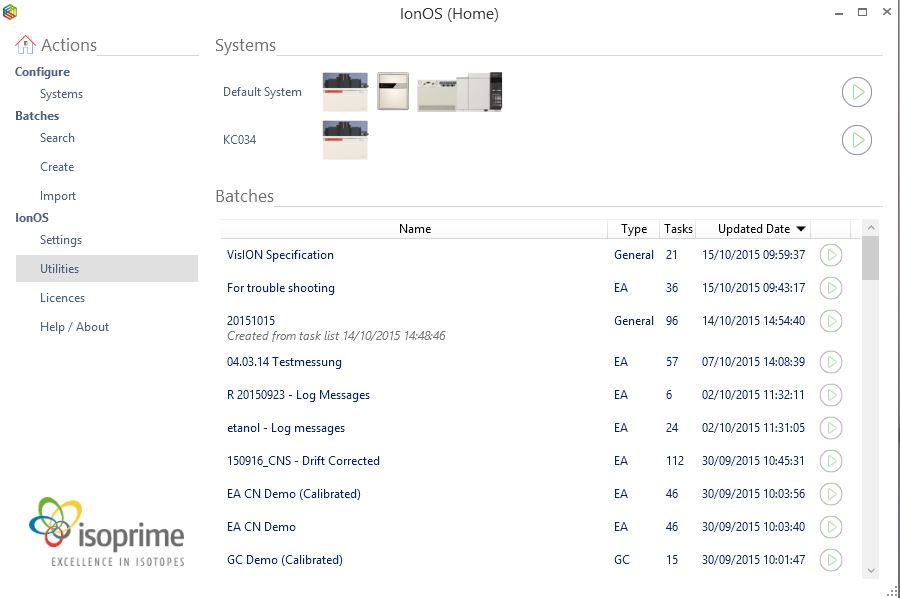
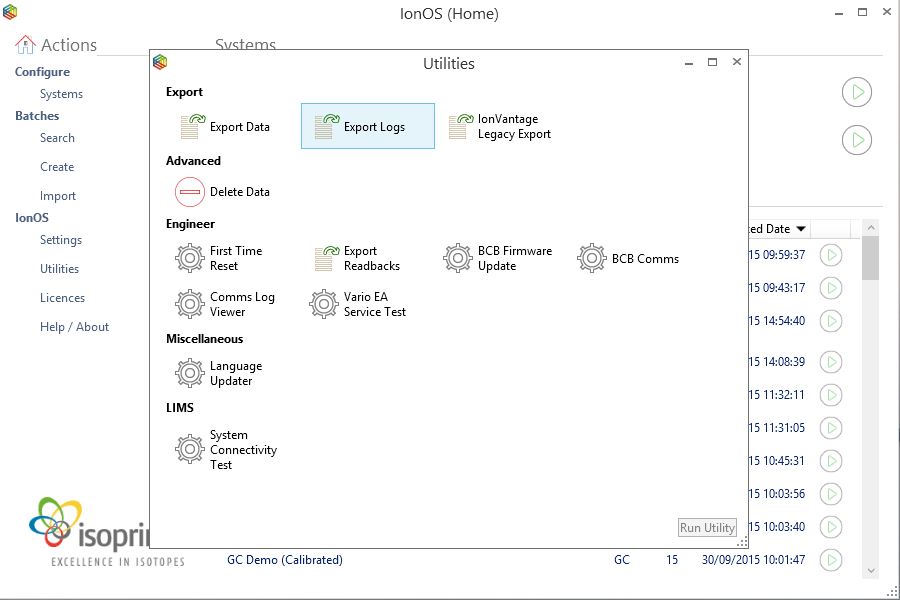
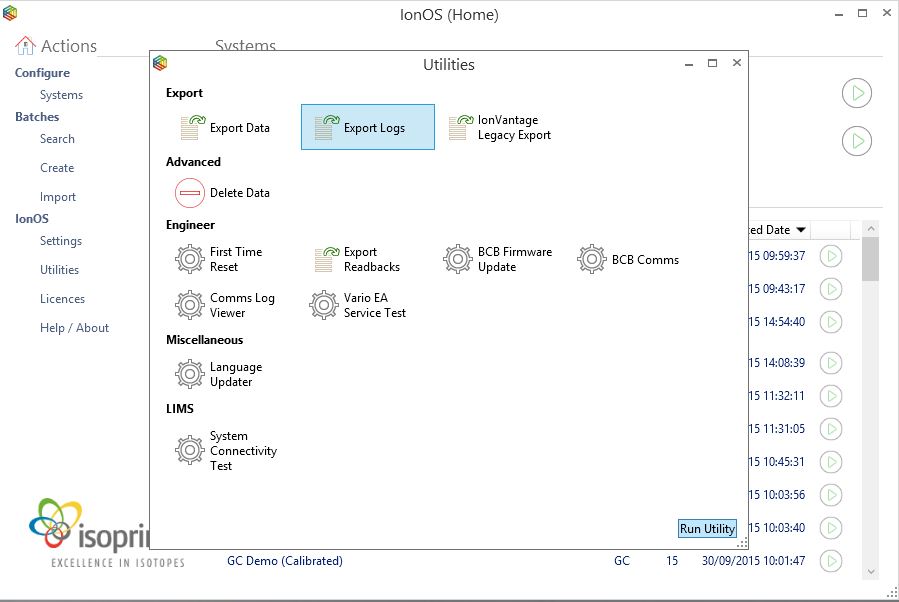
Run the “Export Logs” utility (double click or select and click “Run Utility”)
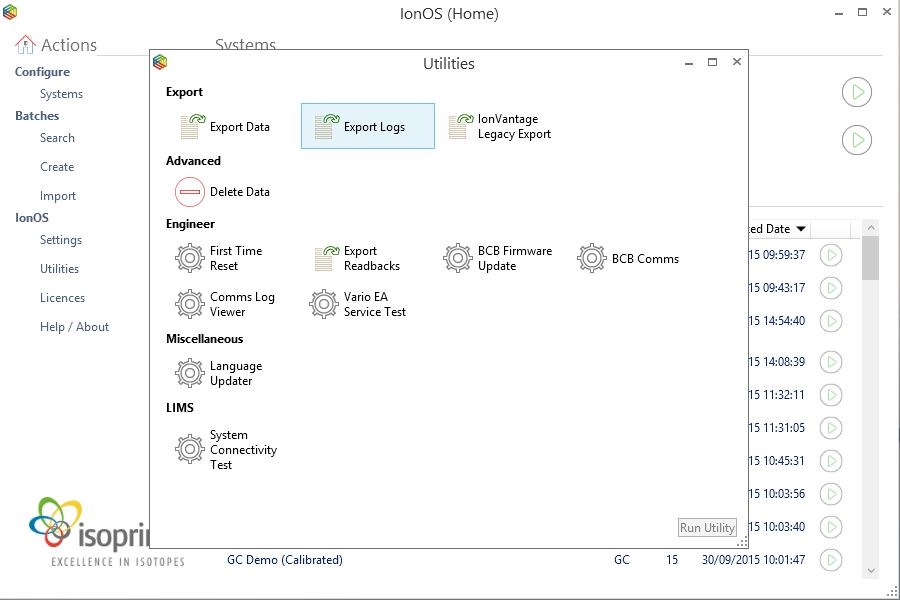
Figure 9-27: IonOS Utilities Dialog
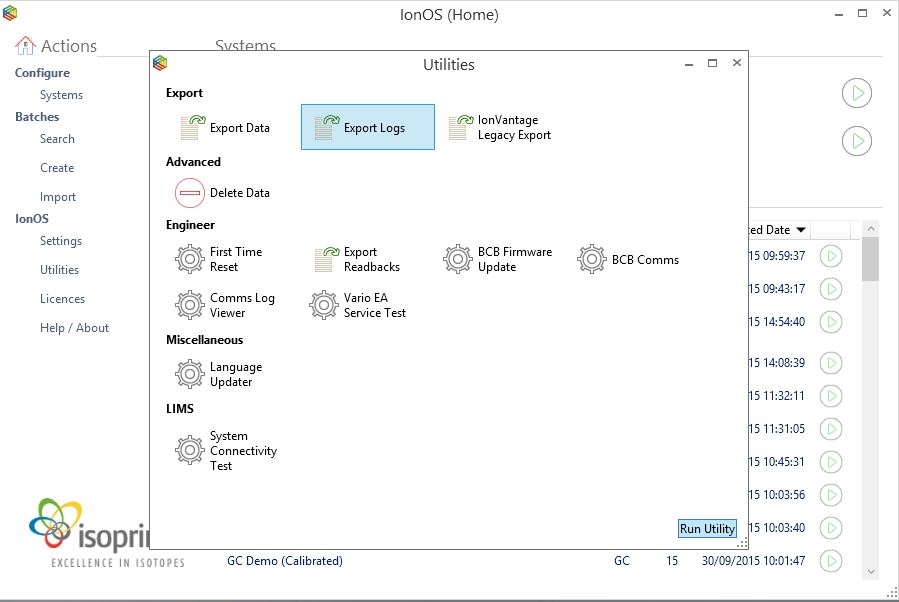
Figure 9-28: Selecting the Export Logs utility
-
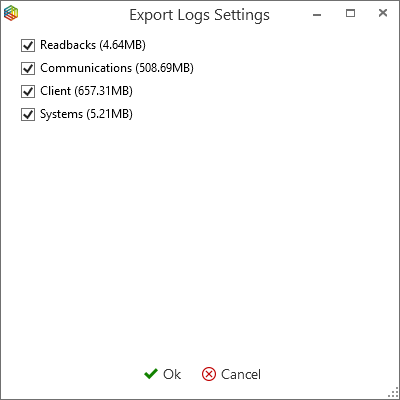
You will then be prompted to select the logs that you want to export. You should have been informed by Elementar which logs to include, but if you are unsure, then select all the logs (or as a bare minimum always ensure that the Client logs are included).
Figure 9-29: Export Logs Settings dialog showing Readbacks, Communications, Client and Systems log options
-
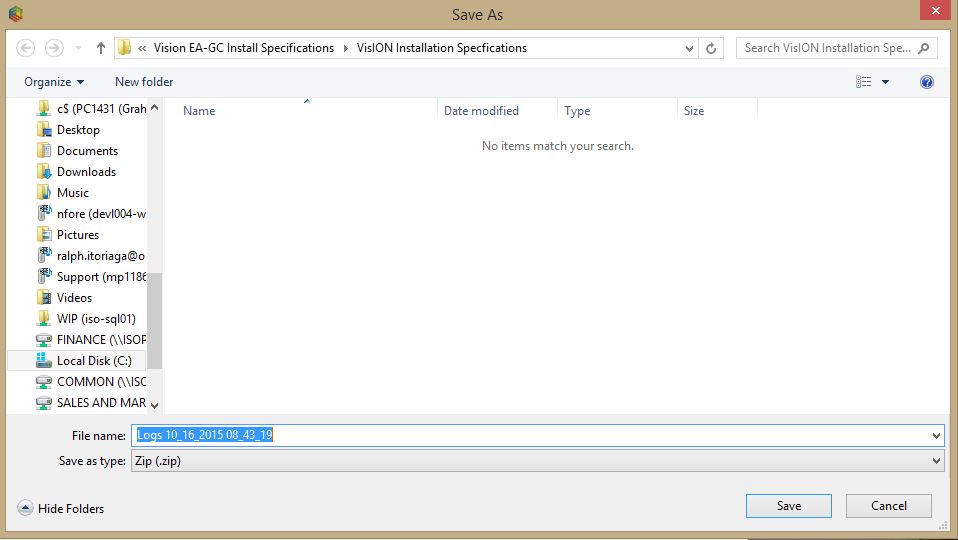
You will then be prompted to save the exported logs
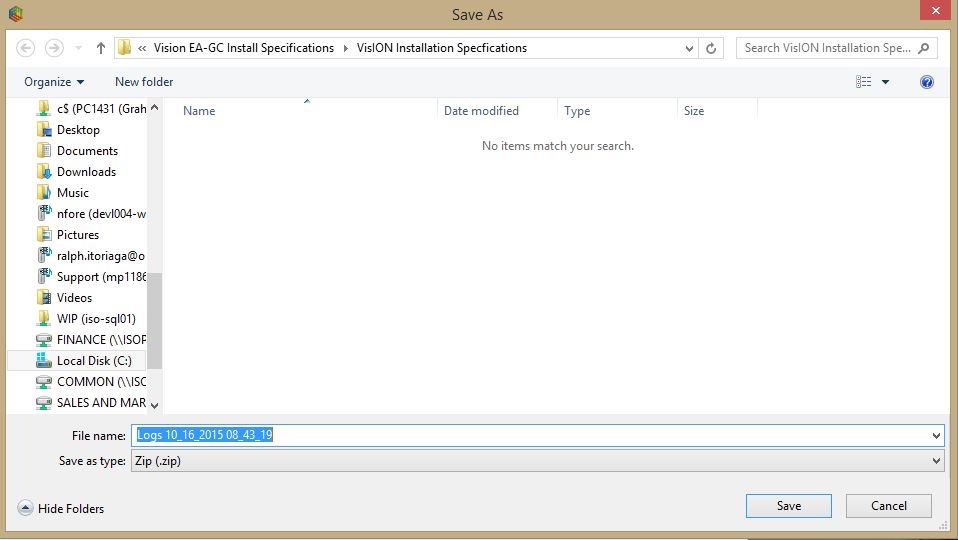
Figure 9-30: Save export log files as a zip file dialog
-
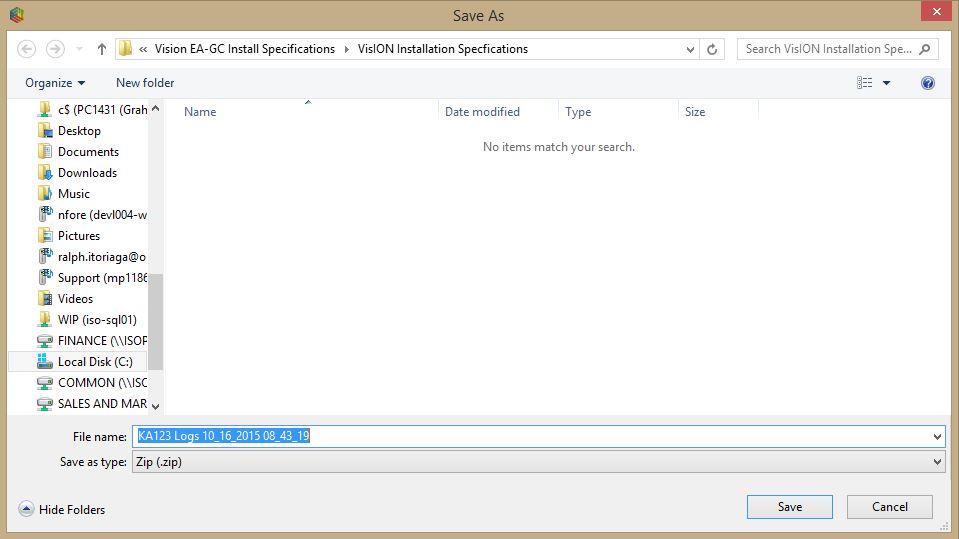
It is recommended that the file is saved with an explicit name so that Elementar can easily identify from which system the log has been created. E.g. include the instrument serial number or the Resolve ticket number.
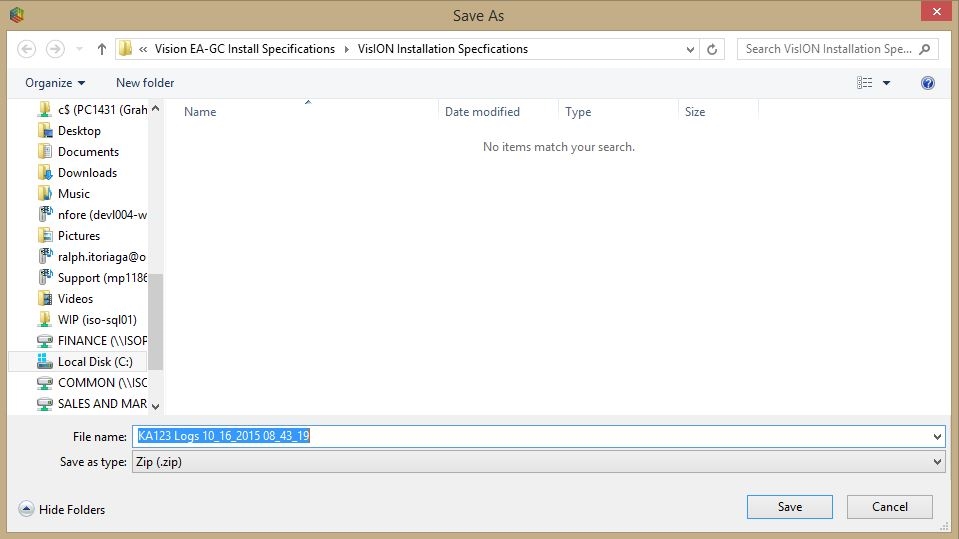
Figure 9-31: Example logs zip file naming with serial numbers and possibly Resolve ticket id
-
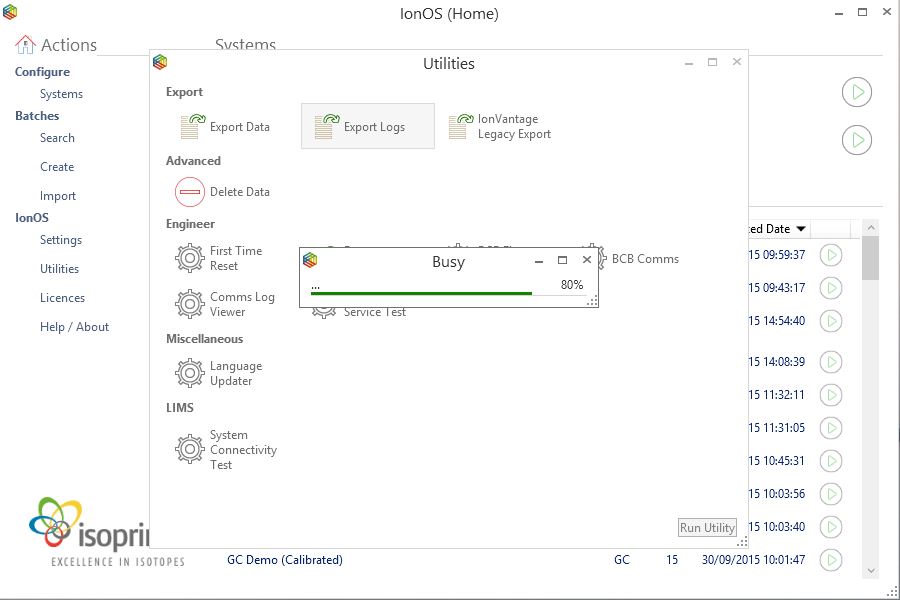
A busy dialogue will show a progress bar to confirm the status of the export
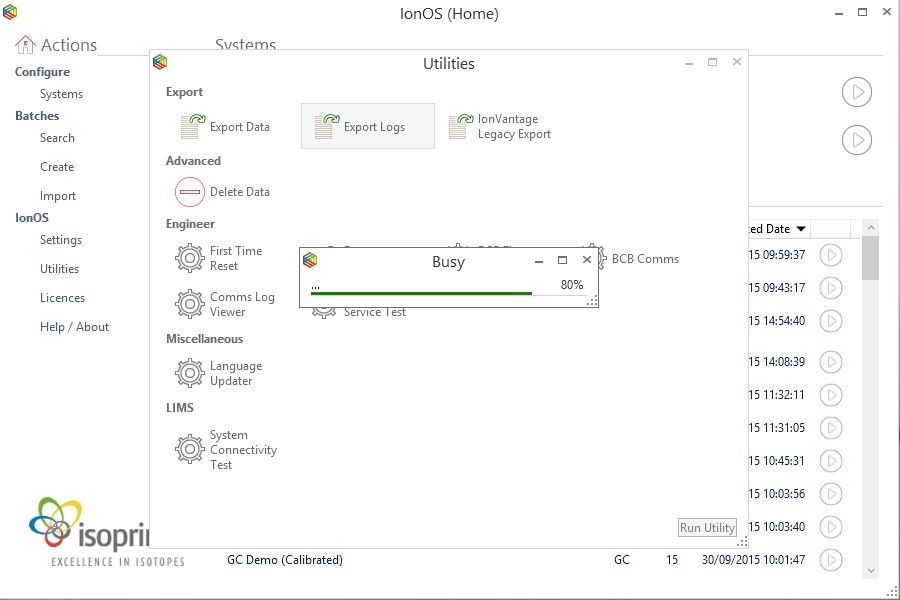
Figure 9-32: Exporting logs progress reporting
-
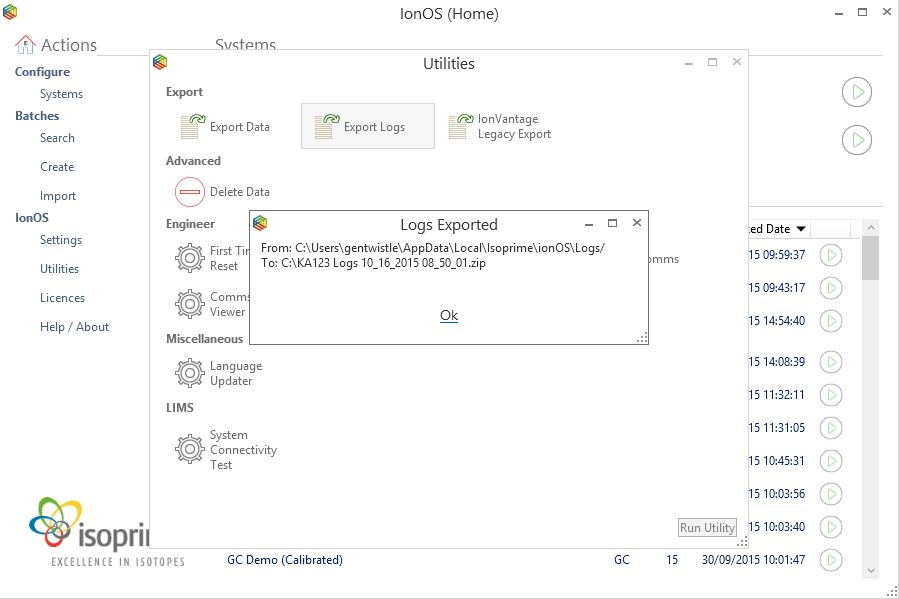
Once completed the dialogue will refresh and show the saved file path
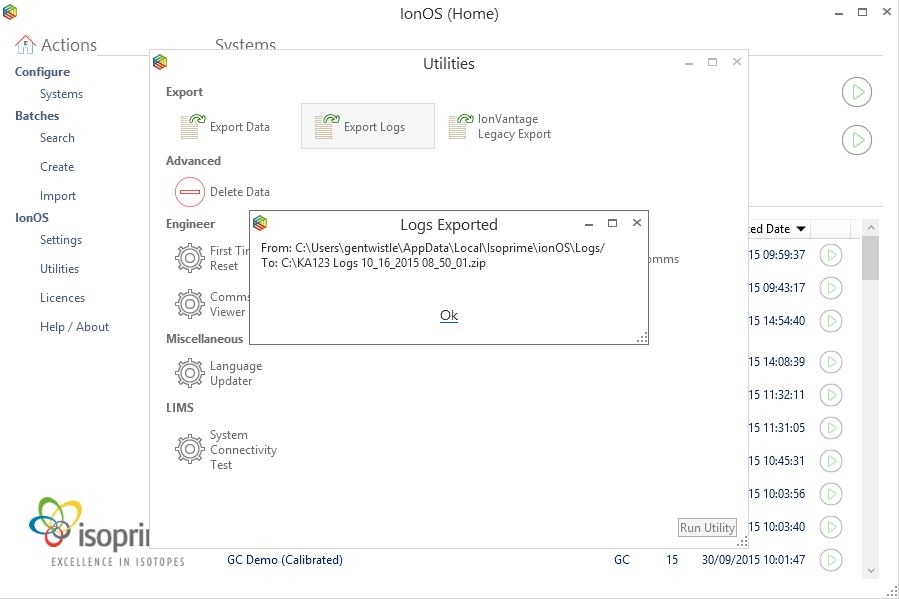
Figure 9-33: Exporting logs complete showing saved file path
- Either review the contents of the logs or send them to Elementar.
Exporting Readbacks (User Friendly)
IonOS automatically records all readbacks (settings, set points, voltages, currents, pressures, flow rates, etc.) while IonOS is connected to a system.
This behavior can be disabled, but it is not recommended.
The raw information is automatically included as part of the “Exporting Logs” process, however it can be useful to view a date/time range of these readbacks in a convenient excel file.
-
Open the Home page within IonOS.
Figure 9-34: IonOS Home Screen
-
Select Actions > IonOS > Utilities
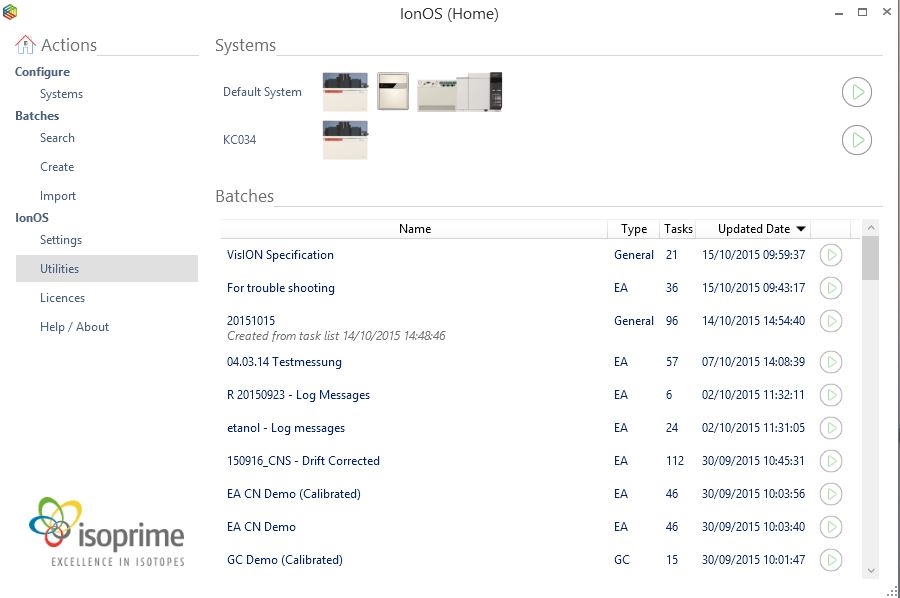
Figure 9-35: IonOS Home Screen > Utilities
-
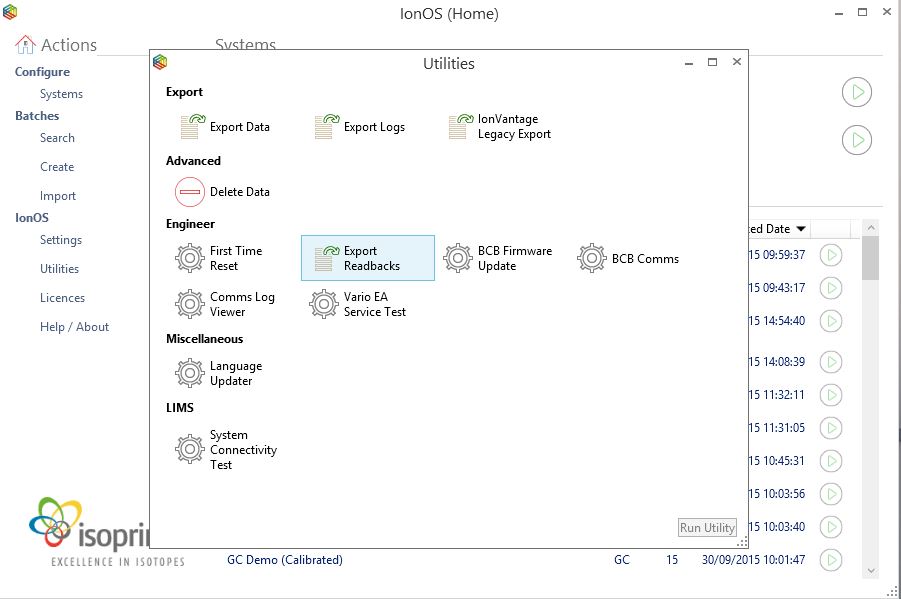
Select the Export Readbacks utility within IonOS
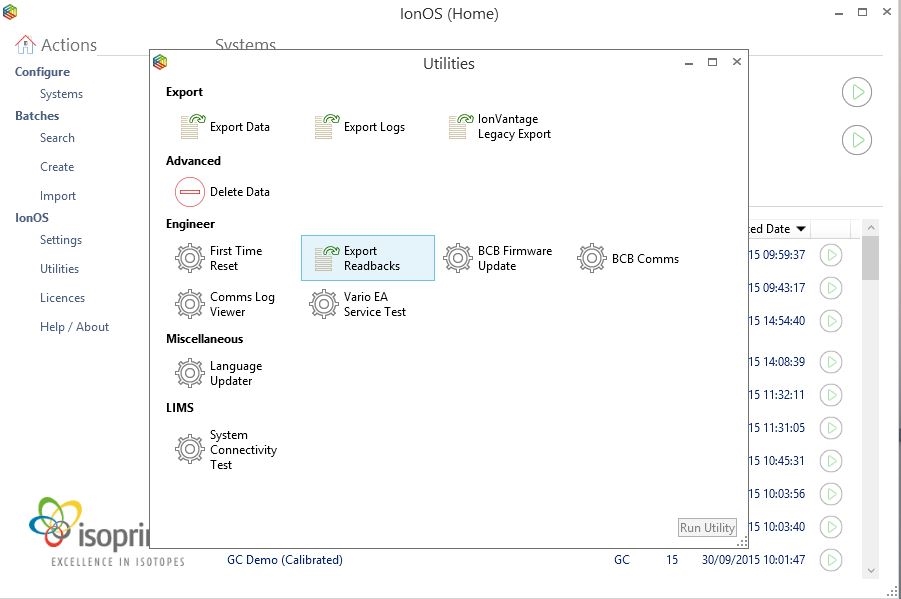
Figure 9-36: Selecting the Export Readbacks utility
-
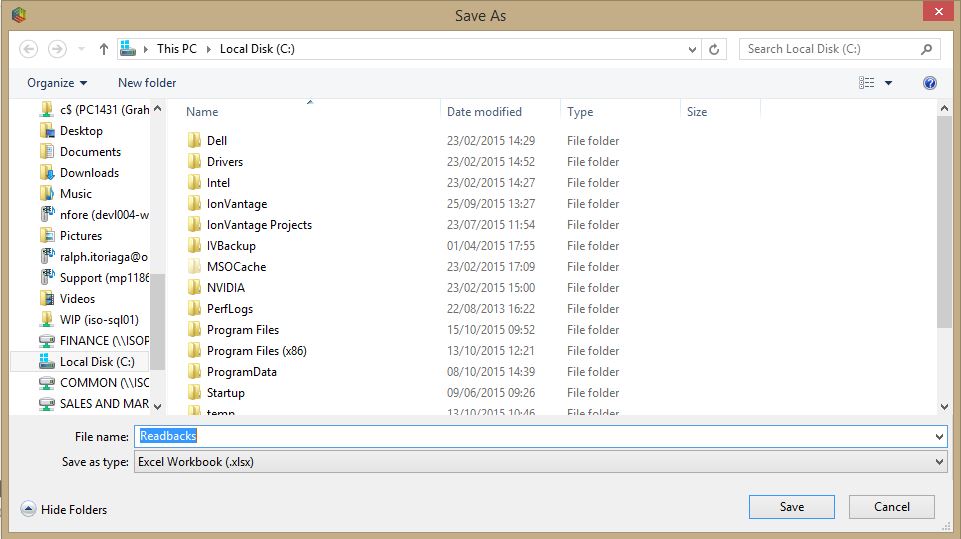
You will then be prompted to save the excel file. It is recommended that the file is saved with an explicit name so that Elementar can easily identify from which system the log has been created. E.g. include the instrument serial number or a Resolve ticket number.
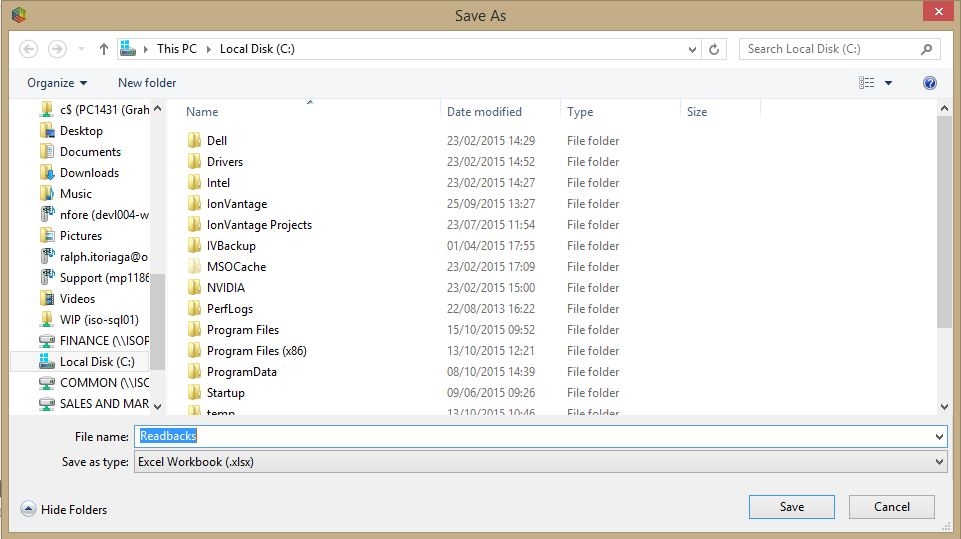
Figure 9-37: Save the readbacks as an Excel Workbook (*.xlsx)
-
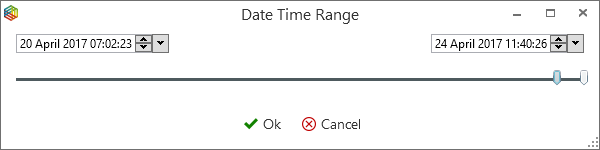
A Date Time Range dialog will be displayed. It is recommended that an appropriate Date / Time range be selected so that the export only includes the readbacks that are relevant (1-2 minutes before and after a problem occurred is usually about right)
Figure 9-38: Readbacks date range selector
-
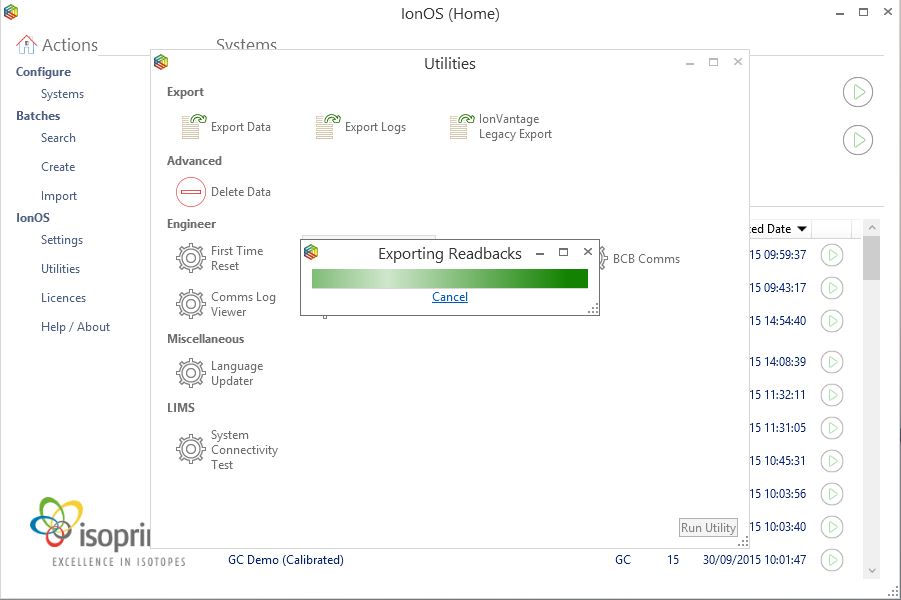
An “Exporting Readbacks” dialogue will appear. This may take a while to complete
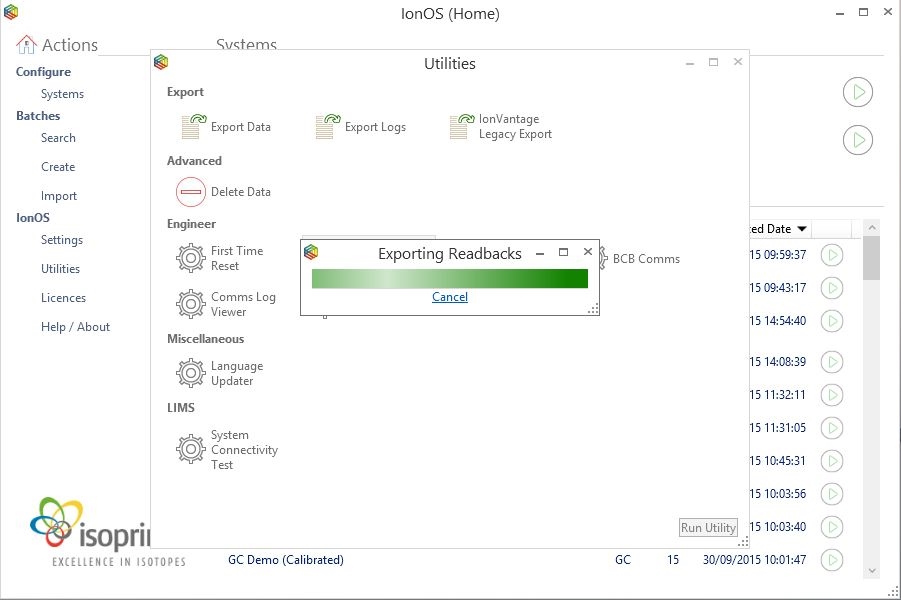
Figure 9-39: Exporting readbacks progress reporting
- Either review the contents of the file or send the file to Elementar.
Sending Logs to Elementar
If the file is particularly large, which is usually the case, then you can use to send the files to
If the file is particularly large, which is usually the case, then you can use https://wetransfer.com(or equivalent) to send the files to the service department of your regional Elementar office or local representative.
Alternatively, attach the file to your Resolve ticket or send the file with an explanation of its contents to service@elementar.co.uk.
Elementar will analyze the log messages and report back any findings.